Receiving Ownership
Your new website is now live!
The last part is to make sure the domain (website address) is officially in your name, so that you have full control over it going forward.
You will need to have an Afrihost Clientzone account for this. You’ll then receive a request to accept the transfer - this is normal and only takes a few minutes
Note: The transfer request will become available at the start of the next Afrhost billing cycle - around the 6th of the new month.
Step 1 - Create a ClientZone Account
If you are new to Afrihost, you first need to create an Afrihost ClientZone account.
ClientZone is your one-stop portal to manage all your products, make payments, check balances and top up your account.
Instructions & screenshots below:
Create a ClientZone account - click here
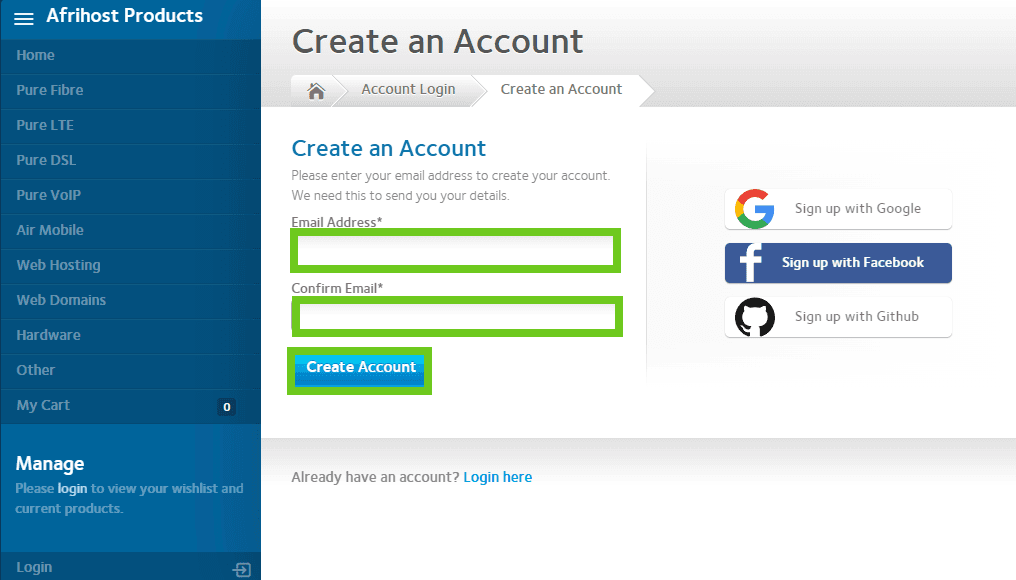
Enter your email address and confirm it is correct.
Click on the ‘Create Account’ button.
Then:
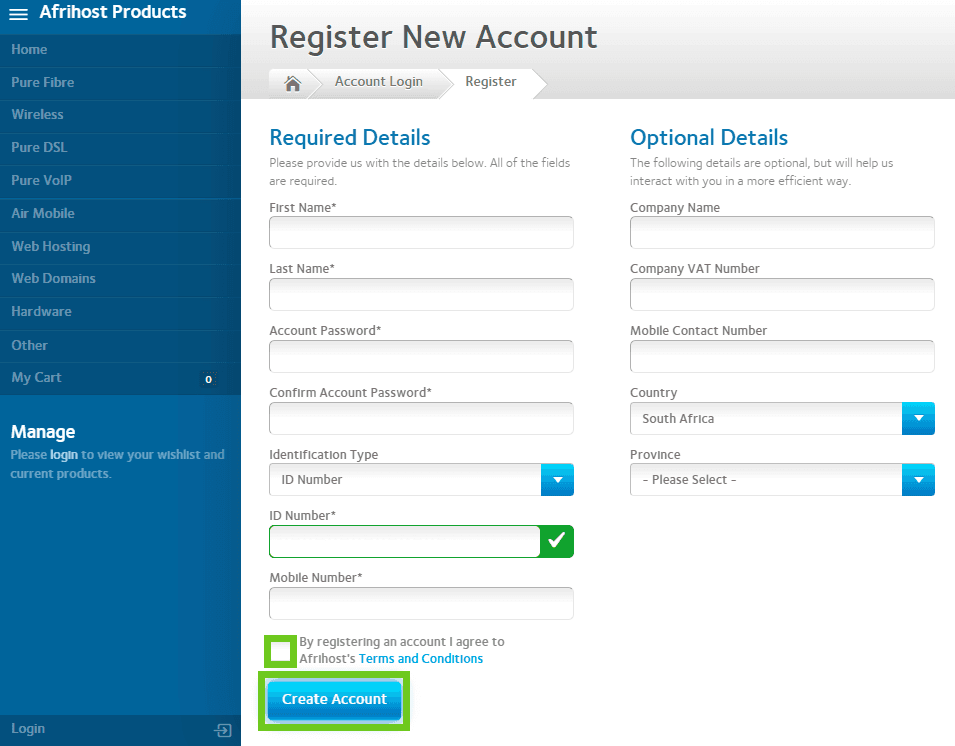
Fill in your personal information.
Tick the terms and conditions check box.
Click the ‘Create Account’ button to finalise your account registration.
Step 2 - Add a Payment Method
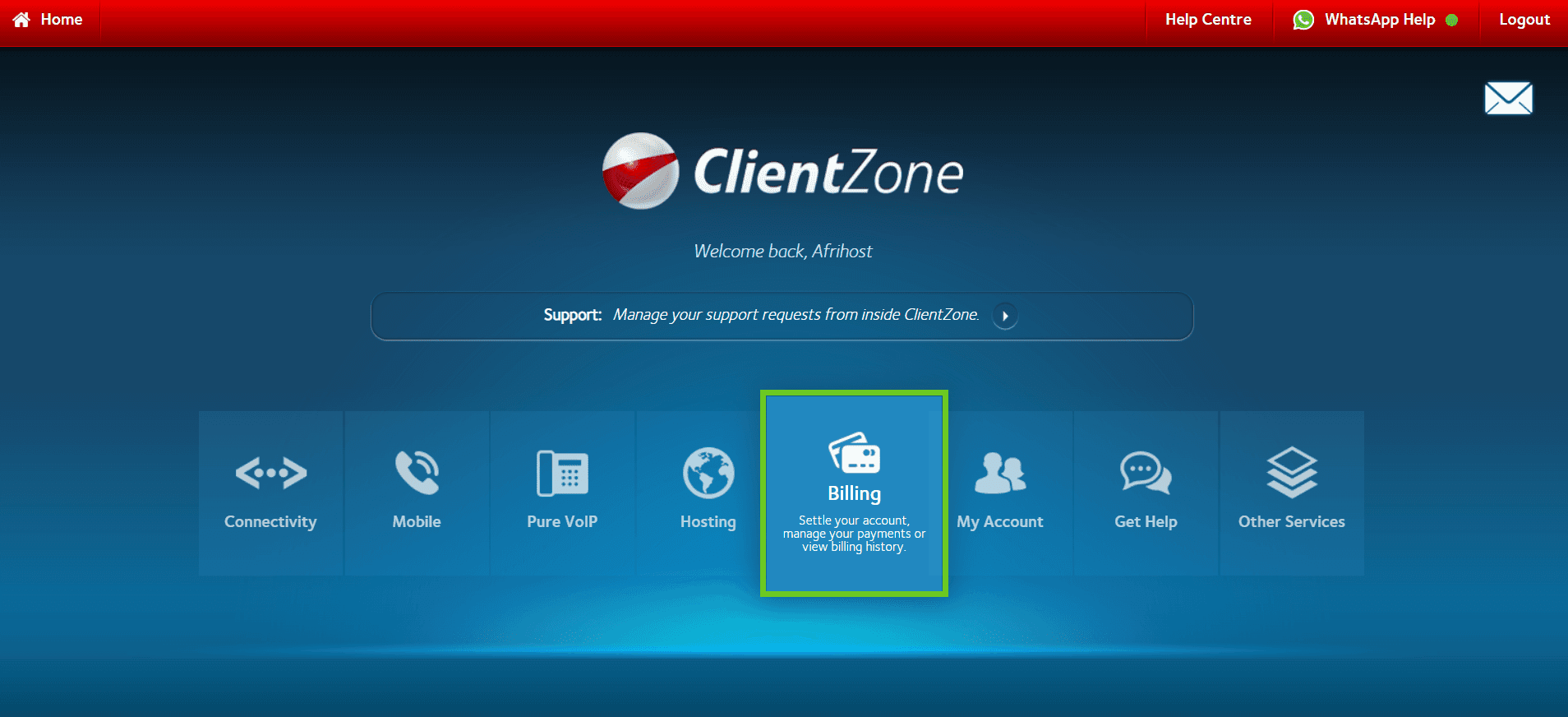
In the ClientZone, click on the ‘Billing’ tab.
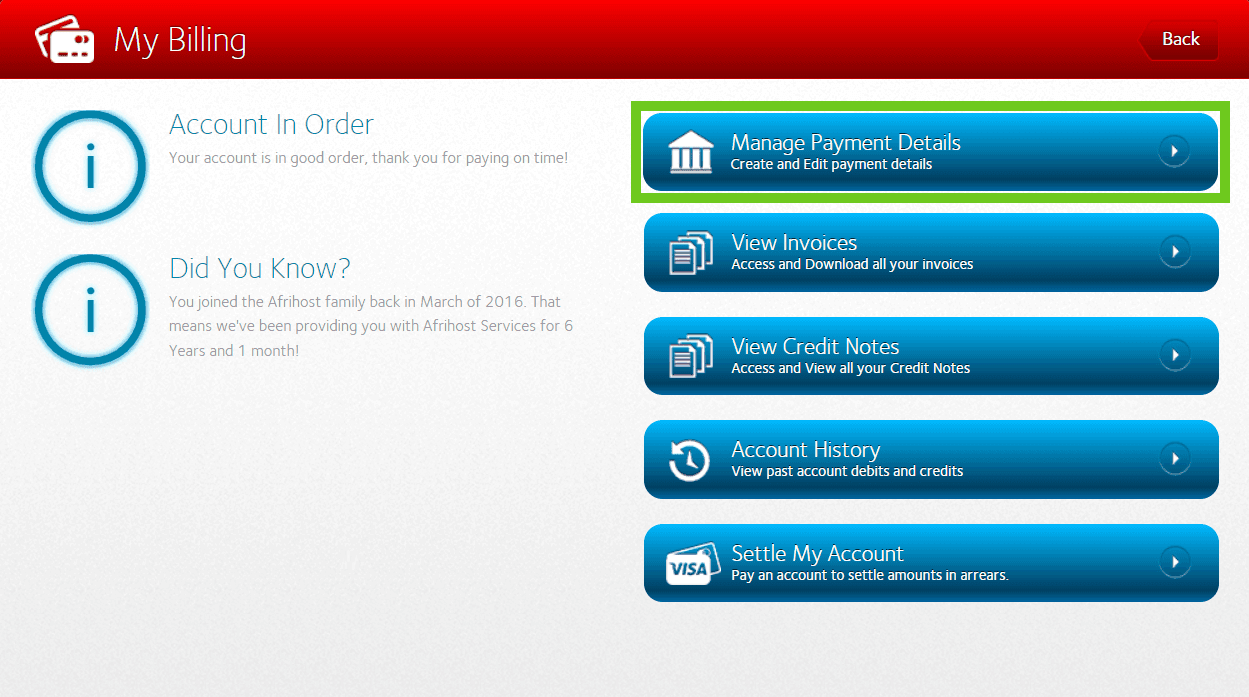
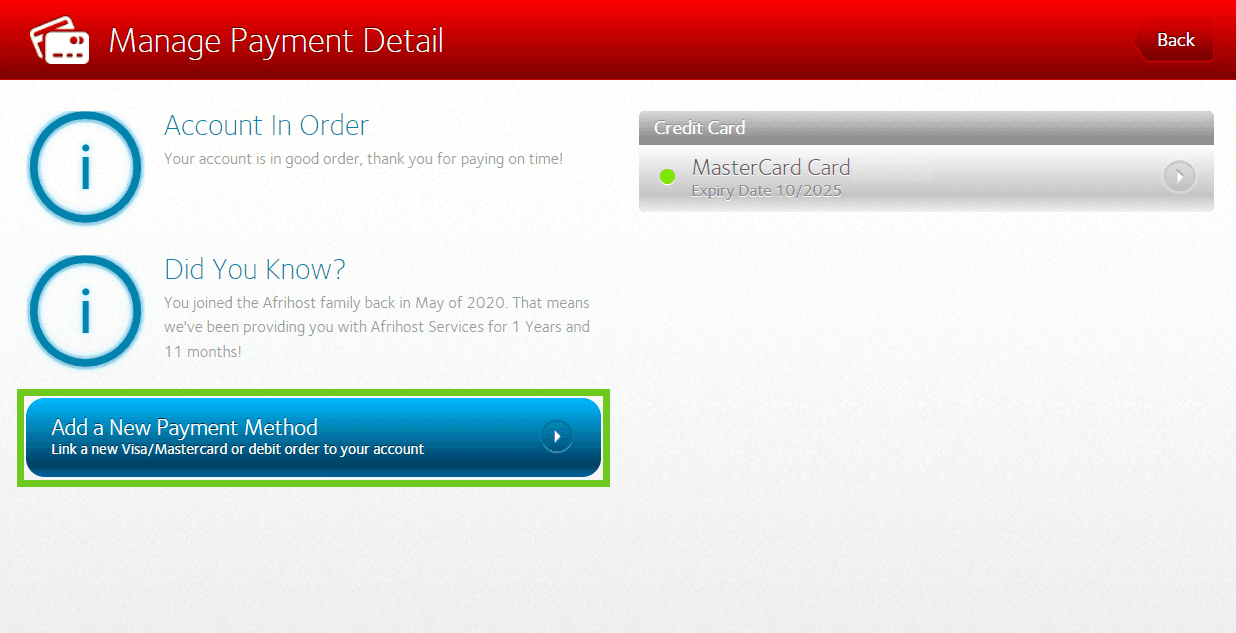
In the 'My Billing' section, select ‘Manage Payment Details’ .
Select ‘Add a New Payment Method’ button on the left-hand side.
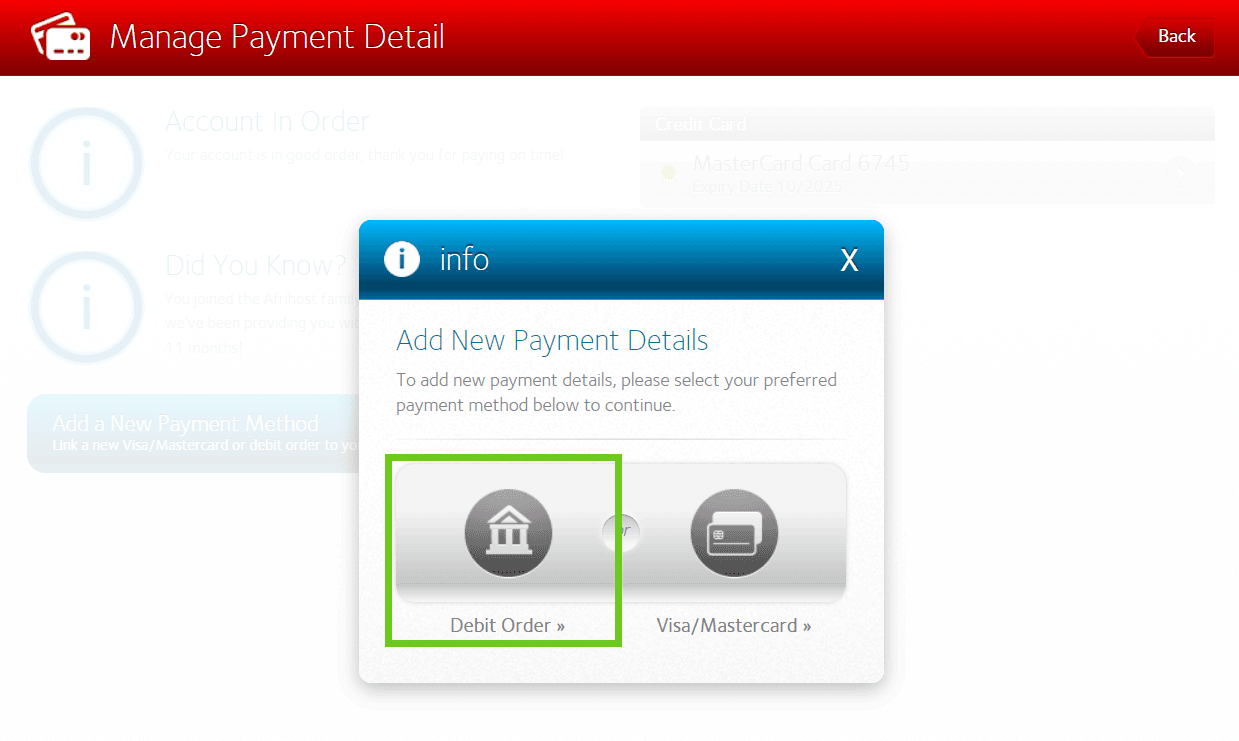
Select 'Debit Order' as your preferred method of payment from the pop up.
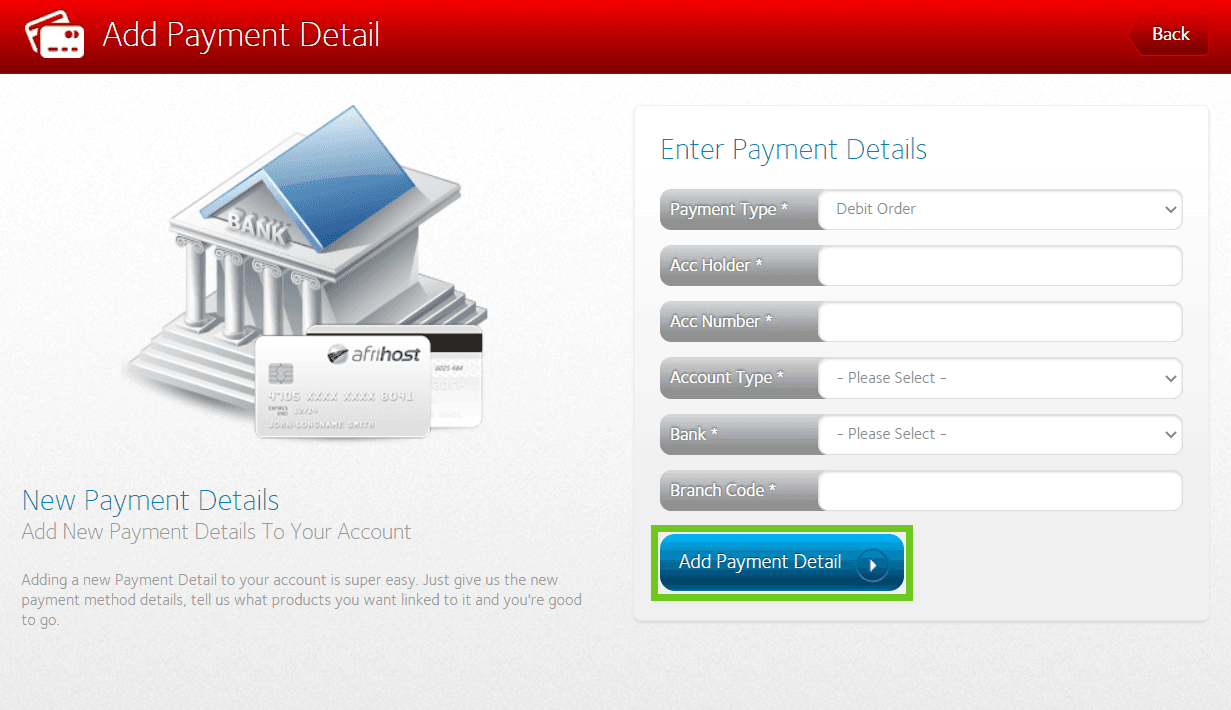
Enter your new payment details.
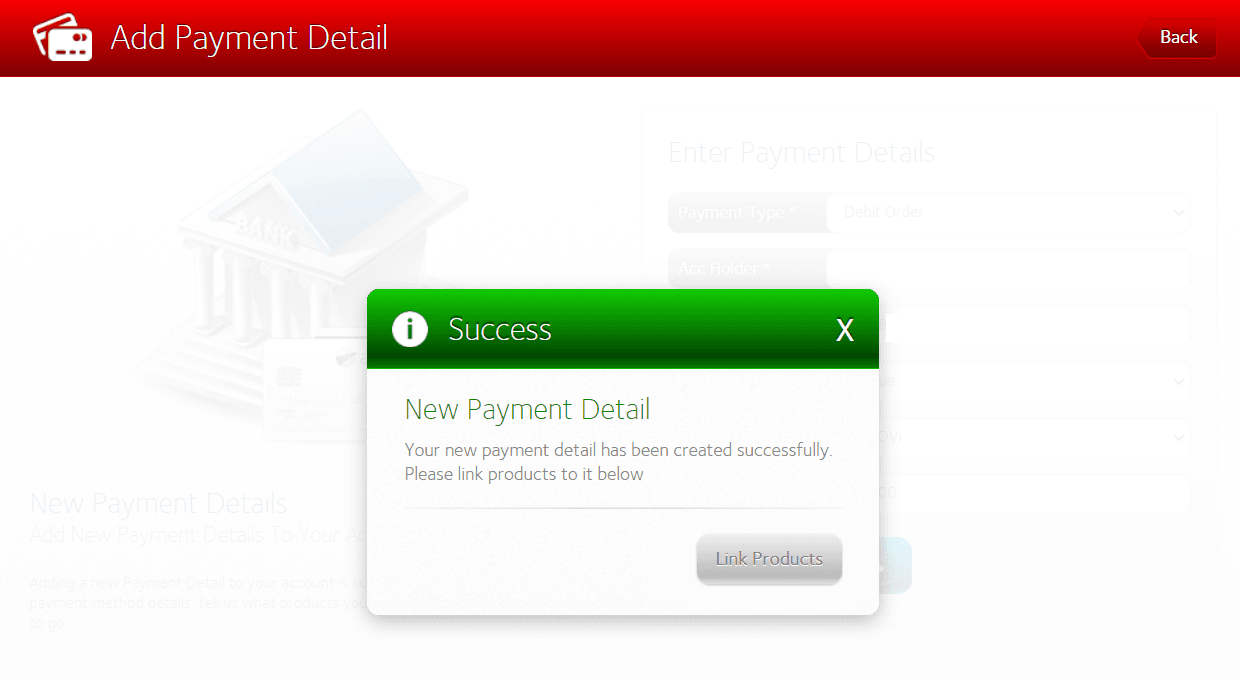
Click ‘Add Payment Detail’ button below to save the information.
Step 3 - Take Ownership of Domain
Log into ClientZone.
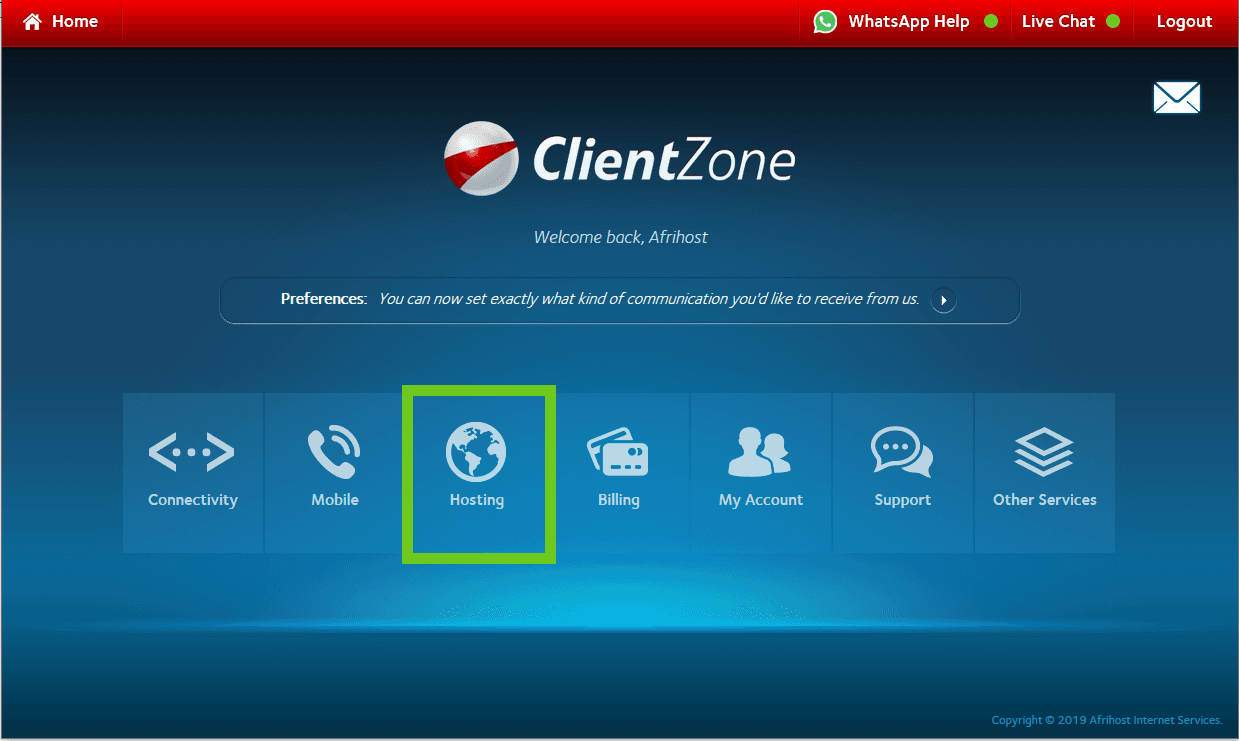
Click on the ‘Hosting’ tab.
Then:
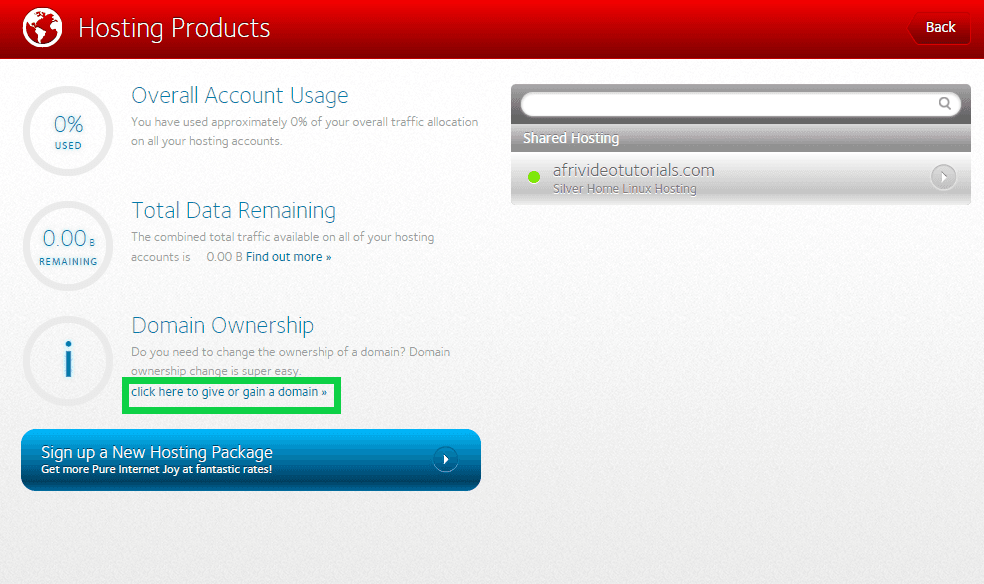
On the left-hand side under Domain Ownership, click on ‘Give or gain a domain’.
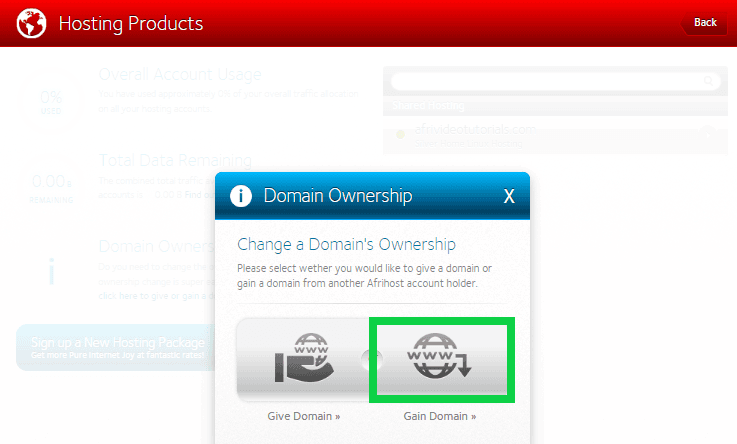
A pop-up will appear. Select ‘Gain Domain’.
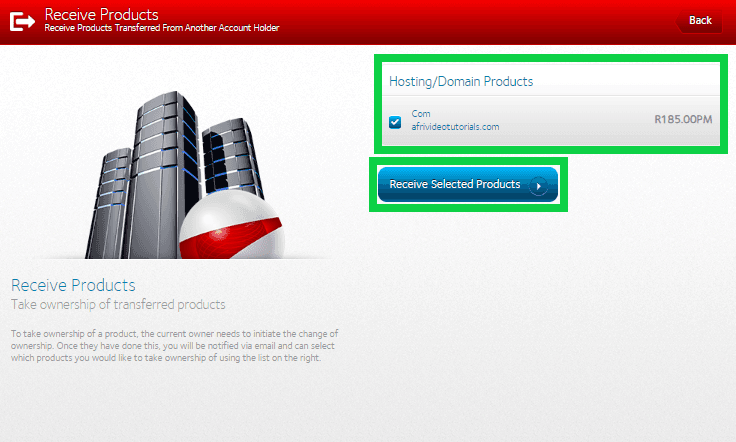
Select the domain you would like to take ownership of.
Click on the 'Receive Selected Products' button.
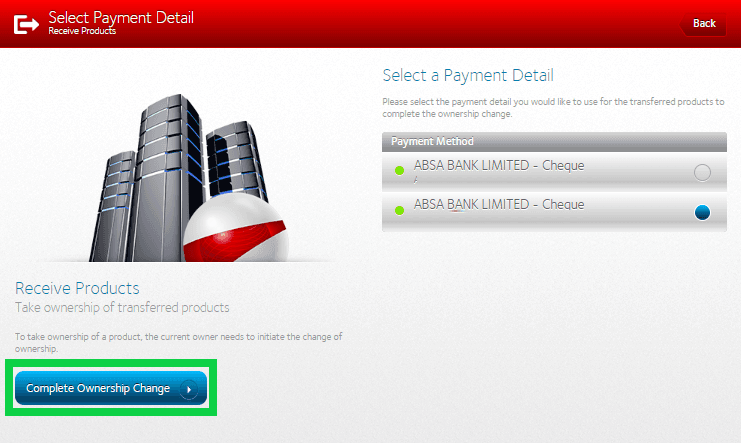
Select your payment method.
Click 'Complete Ownership Change' to process.
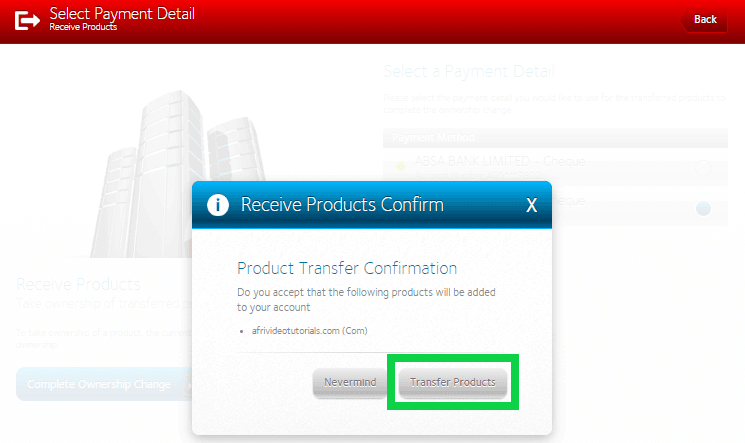
Confirm that you accept the transfer of these products and click ‘Transfer Products’.
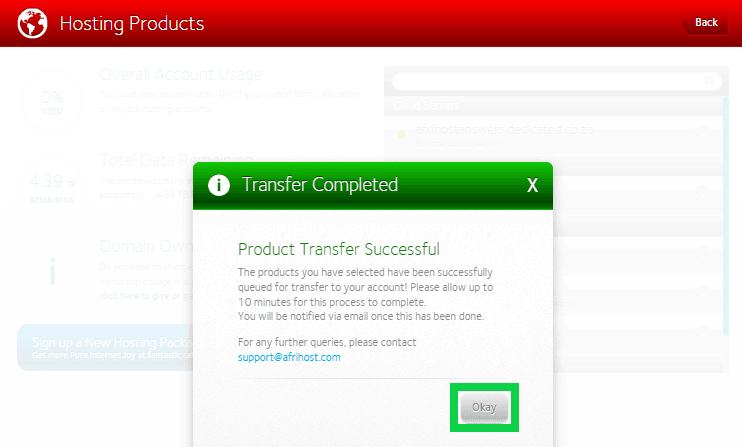
A notification will pop up ‘Successful’.
Click the 'Okay' button to exit.

Congratulations! You have successfully gained ownership of the domain.
Information from this page on Afrihost Help Centre.
Having trouble?
Don't hesitate to reach out to me for assistance with the above process, or you can also email support@afrihost.com for technical support.